

How to Paste Data
Two Ways to Map Fields in PastePerfect.Ai
PastePerfect.Ai makes it easy to map fields between your copied data and destination websites. You can choose between two methods:
- Drag and Drop
- Fetch All Mappings (Experimental – currently being improved)
Method 1: Drag and Drop
This method allows you to manually map fields once, ensuring consistent accuracy for all future visits to the same website.
Example: eBay Checkout Page
- Copy Address Data: First, copy your address information into the PastePerfect.Ai extension.
- Navigate to the Checkout Page: Go to a checkout page to edit the ship to address so the fields are visible.
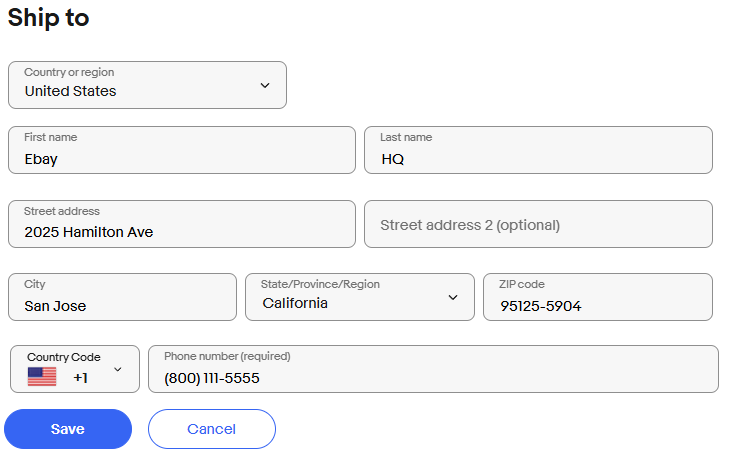
- Clear Existing Fields: Remove all information from the fields so they are blank.
- Map Fields Manually:
- Open the PastePerfect.Ai extension.
- Drag the "First Name" from the extension and drop it into the "First Name" field on eBay.
- Repeat this process for all corresponding fields (e.g., last name, address, city, state, zip code, etc.).
- Save Your Mappings: Once everything is mapped, the extension will remember these settings. For future visits, you’ll only need to click the "Paste" button to auto-fill the fields.
Tip: You only need to perform drag-and-drop mapping once per website.
Method 2: Fetch All Mappings (Experimental)
This method automatically detects and maps fields on a website, saving you time.
Example: Amazon Add Address Page
- Visit the Target Page: Navigate to a site where you want to enter the address information to where the fields are visible.
- The fields can be blank or pre-filled; the extension can handle both.
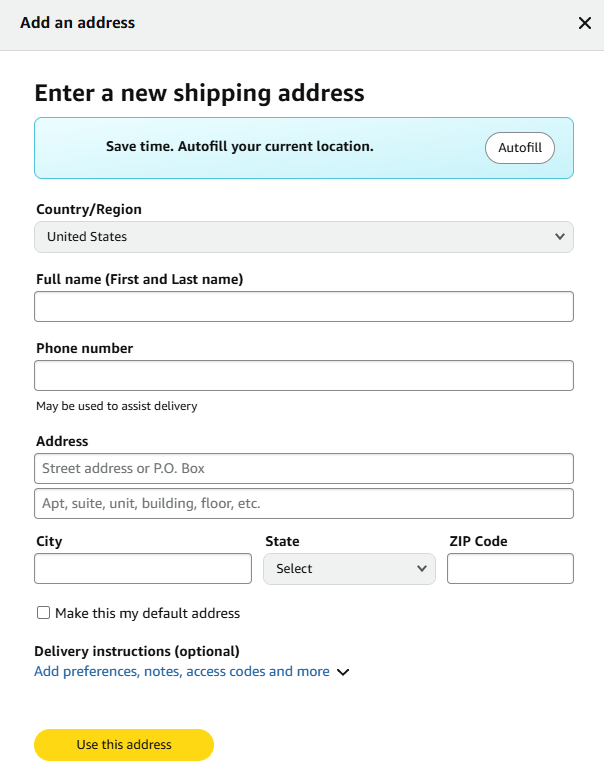
- The fields can be blank or pre-filled; the extension can handle both.
- Activate Mapping:
- Open the PastePerfect.Ai extension.
- Scroll down and click "Fetch All Mappings".
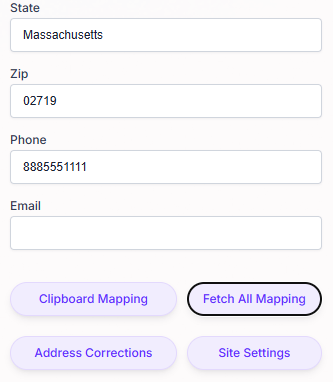
- Wait about 5 seconds for the AI to process the fields.
- Paste Data: Once mapping is complete, scroll up and click the "Paste" button to auto-fill the address fields.
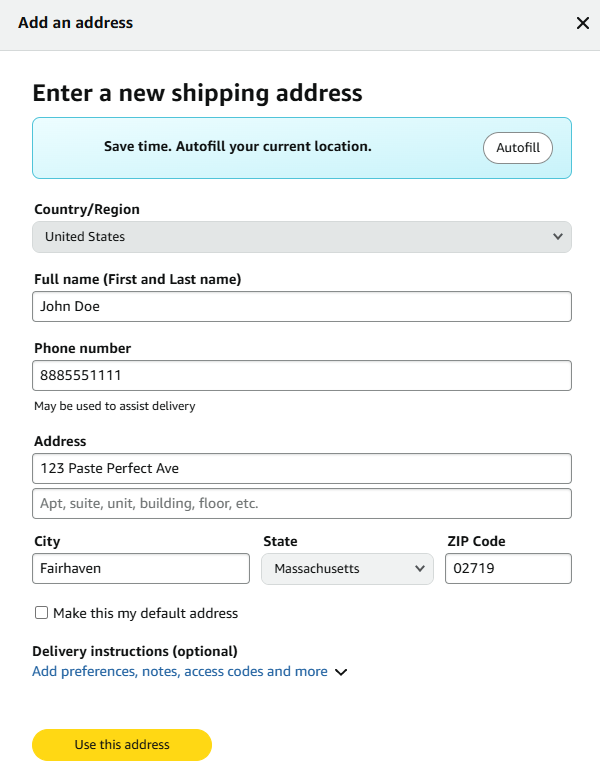
Important Notes:
- This feature is still being refined and may not always work perfectly.
- If a mapping fails, you can reset and manually drag-and-drop fields as a backup.
- To reset mappings, visit the help page titled "Existing Mappings" for detailed instructions.
Streamline Your Experience
Both methods ensure your data is entered quickly and accurately. Use Drag and Drop for guaranteed precision or experiment with Fetch All Mappings for even faster results. We are continuously improving these features to save you time and effort!
Site not working?
Contact us if a site does not work with drag and drop or fetch all mapping. Let us know the site and where to enter the information and we will promptly fix the issue so it works going forward.
Support@PastePerfect.Ai