

How to copy Data
Two Ways to Copy Address Information into PastePerfect.Ai
PastePerfect.Ai offers two efficient methods to input address information:
- Copy Button (available for prebuilt websites)
- Copy from Clipboard
1. Copy Button Method
This method is designed for websites with built-in integration, such as Amazon Seller Central.
Example: Amazon Seller Central
- Step 1: Log into the extension and navigate to an order on Amazon Seller Central.
- Step 2: Look for the blue "Copy Data" button on the order page.
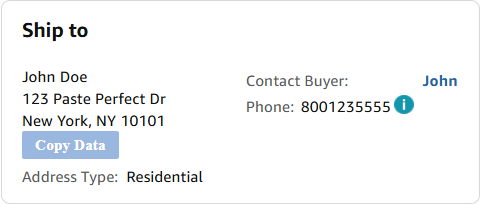
- Step 3: Click the button, and the address information will automatically load into the extension.
Key Features:
- The copied address is checked by AI to ensure it is formatted correctly.
- Any incorrectly formatted information is reorganized into the correct fields, saving you time and eliminating errors.
2. Copy from Clipboard
This method is perfect for websites that don’t have a built-in integration.
How It Works:
- Step 1: Highlight the address information on the website using your mouse.
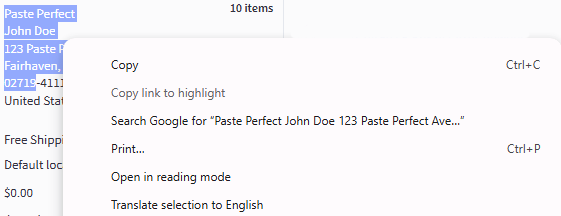
- Step 2: Right-click the highlighted text and select Copy.
- Step 3: Open the PastePerfect.Ai extension, scroll down, and click the "Clipboard Mapping" button.

- Step 4: PastePerfect.Ai will process the data and automatically fill the fields with the correct information.
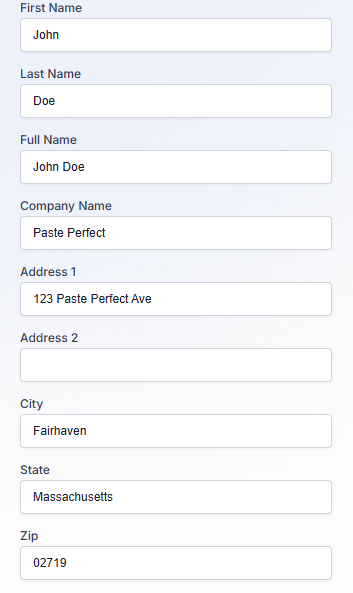
Important Note:
- Only the information you copy will be uploaded into PastePerfect.Ai. For example, if you copy just the name, address, city, state, and zip code but leave out the phone number, the phone field will remain empty.